
Personalise your display
Adjust screen preferences, use the poster uploader, and keep the display current.
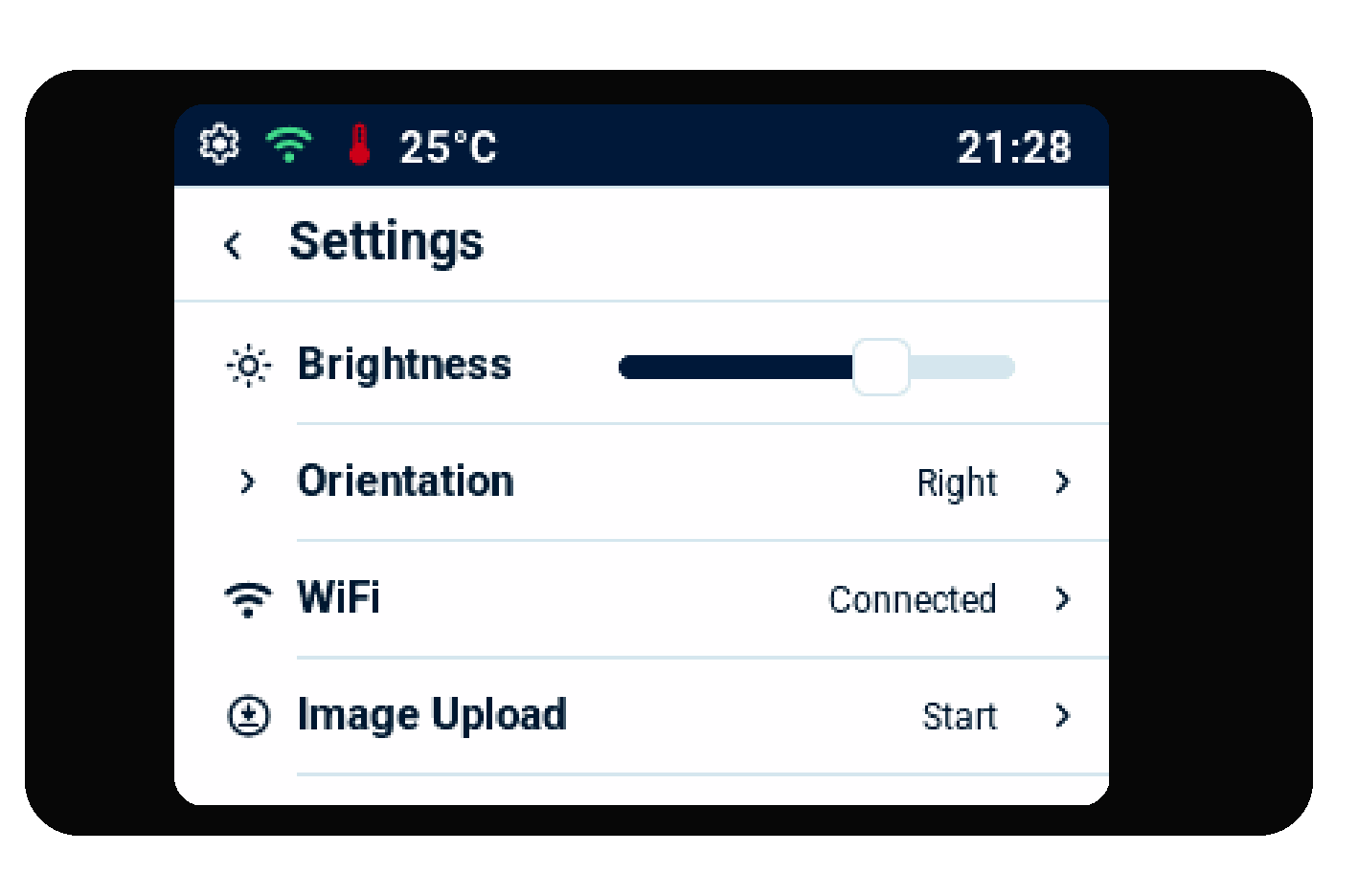
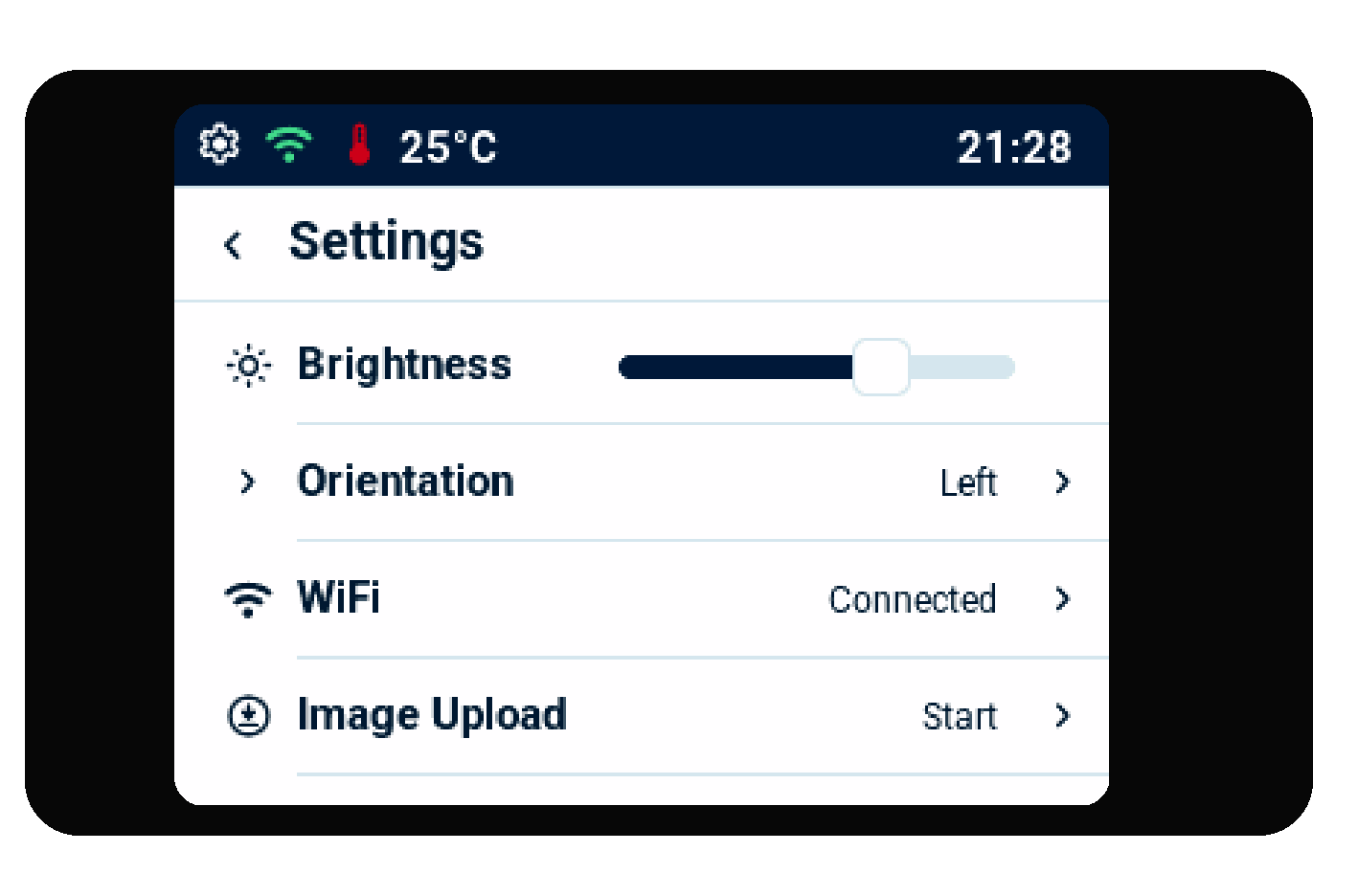
Screen settings
Open Settings from the gear icon. You can adjust:
- Brightness
- Orientation — choose Right or Left to match how the display is placed
- Fullscreen ETA
- Auto Sleep — when On, the screen dims after 5 minutes without touch and turns off after 30 minutes. Touch the screen to wake it.
- Poster Time — how long your poster image stays on screen (shown after you upload an image)
Upload your own poster image
- In Settings, select Image Upload.
- Scan the QR code on the display with your phone.
- Join the Wi-Fi network shown on screen. The name looks like
9build-XXXX. There is no password.
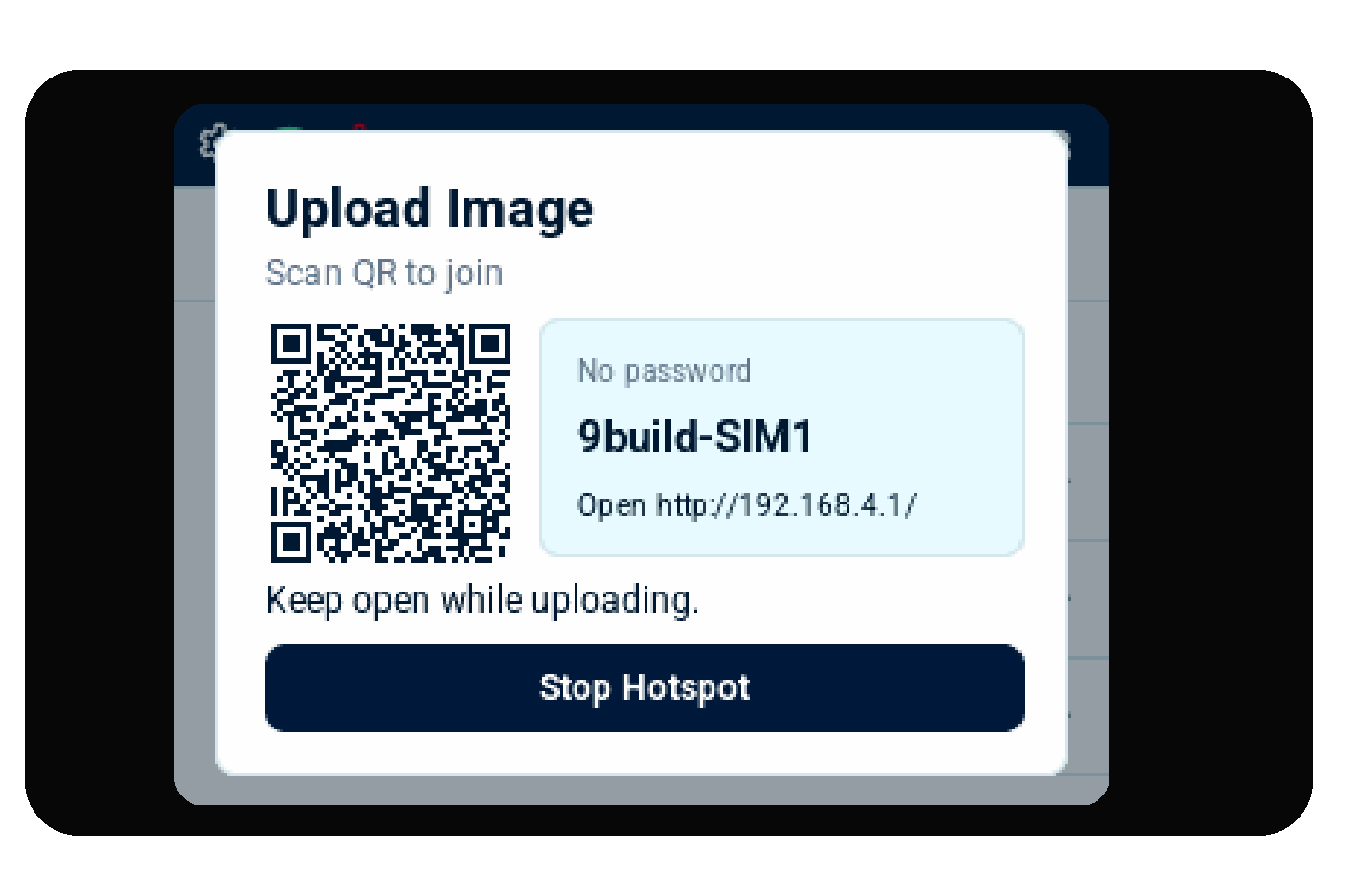
- If the upload page does not open by itself, open the address shown on the display in Chrome or another phone browser.
- Choose an image, position it in the poster area, then select Upload to device.
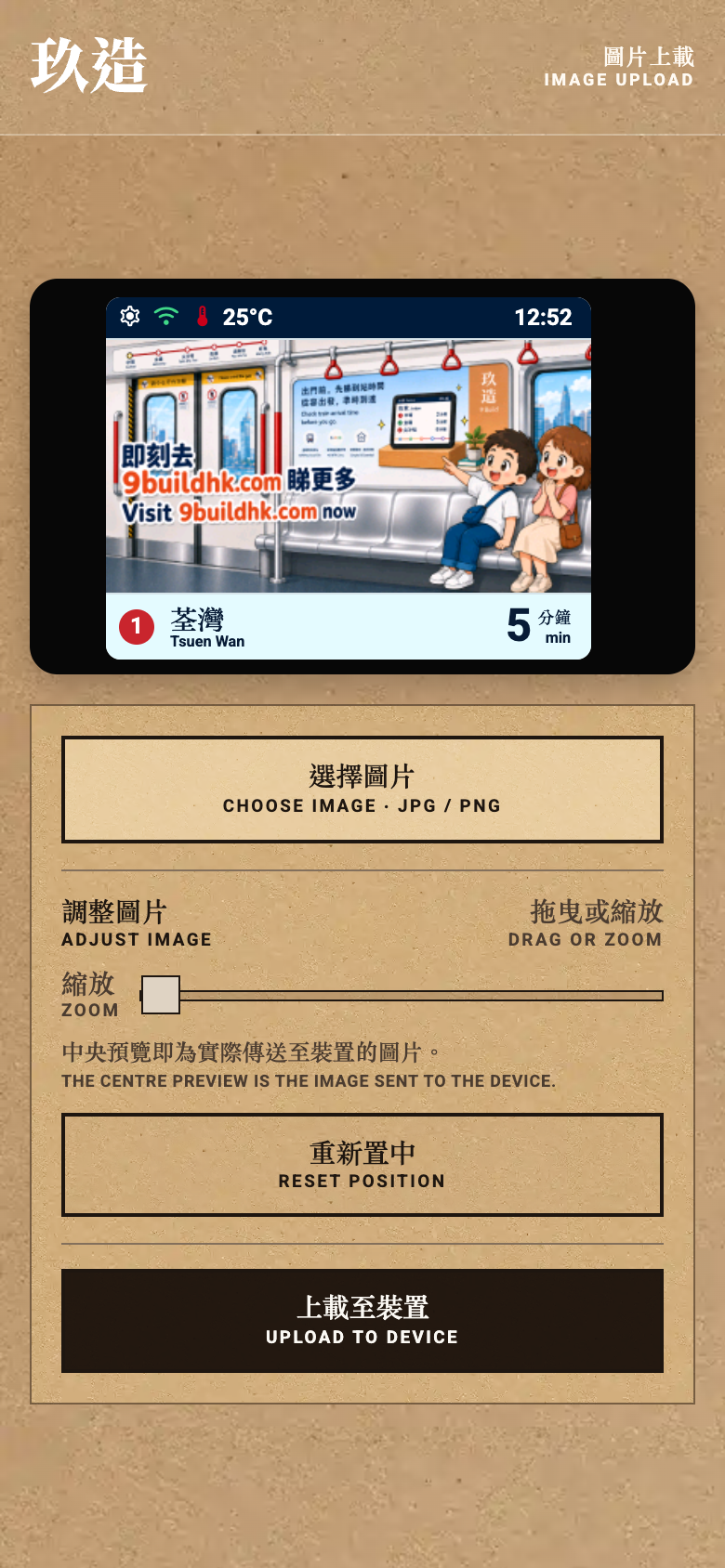
- Keep the phone connected and keep the upload screen open until the display confirms completion. Select Stop Hotspot when you are finished, or close the dialog to stop.
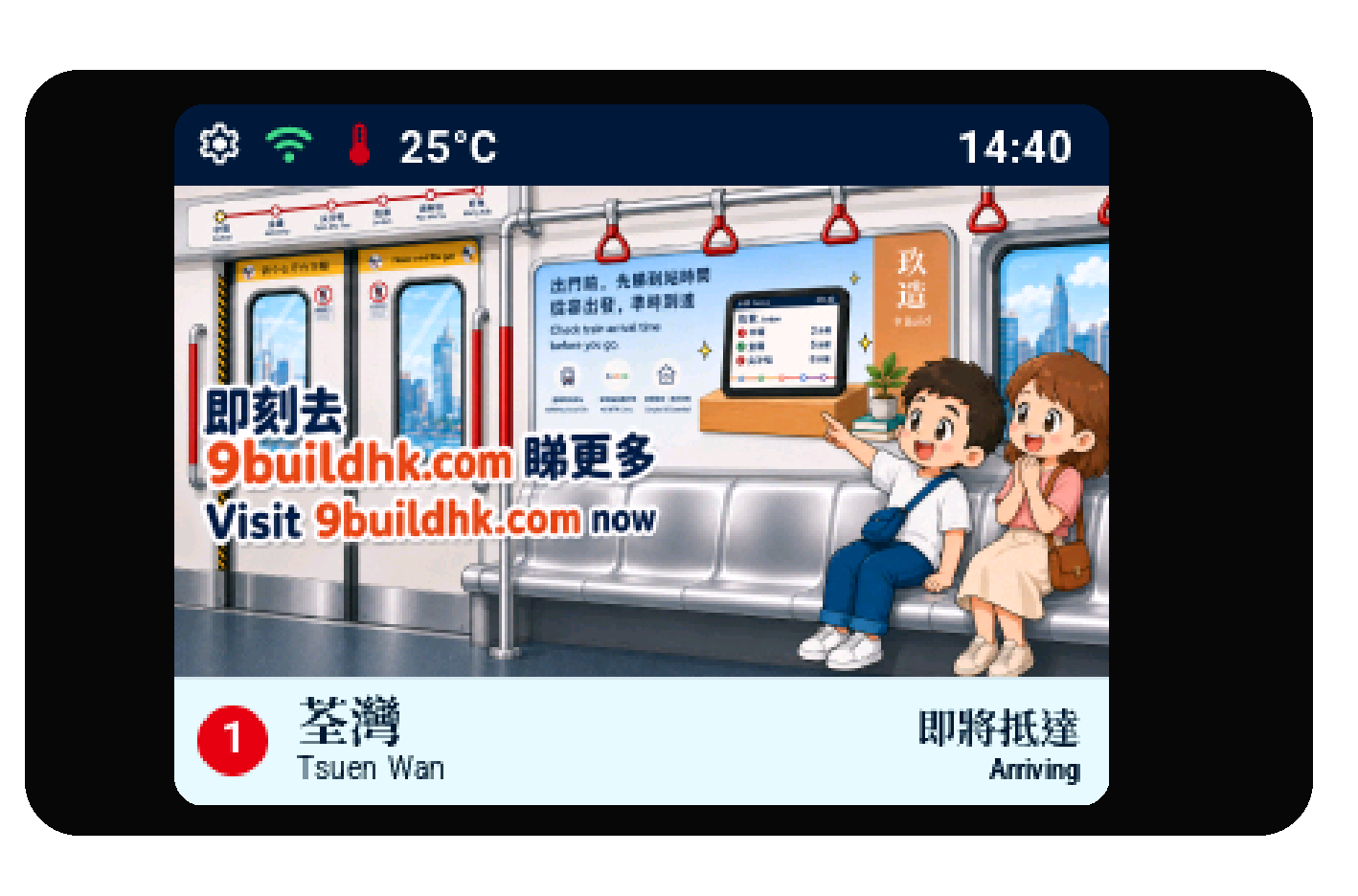
The image moves from your phone straight to the display. It is not sent to a cloud service. Keep power connected while you upload. To remove a poster later, use Remove Image in Settings. The artwork in these examples is a sample image only; Community Edition devices do not support poster upload.
Updates
Keep the display on Wi-Fi and powered throughout.
- Open Settings and select Update (it shows Check update), or open About Device and select Check Update.
- Wait while the display shows Checking....
- If you see Up to date, select Done.
- If you see Update Available, read the notes, then select Install. Select Later to skip for now.
- During download you may see Downloading update... and can select Cancel.
- Next the display shows Installing update..., then Rebooting.... Do not unplug it.
- After restart you may see Verifying update..., then Update complete. Select Done.
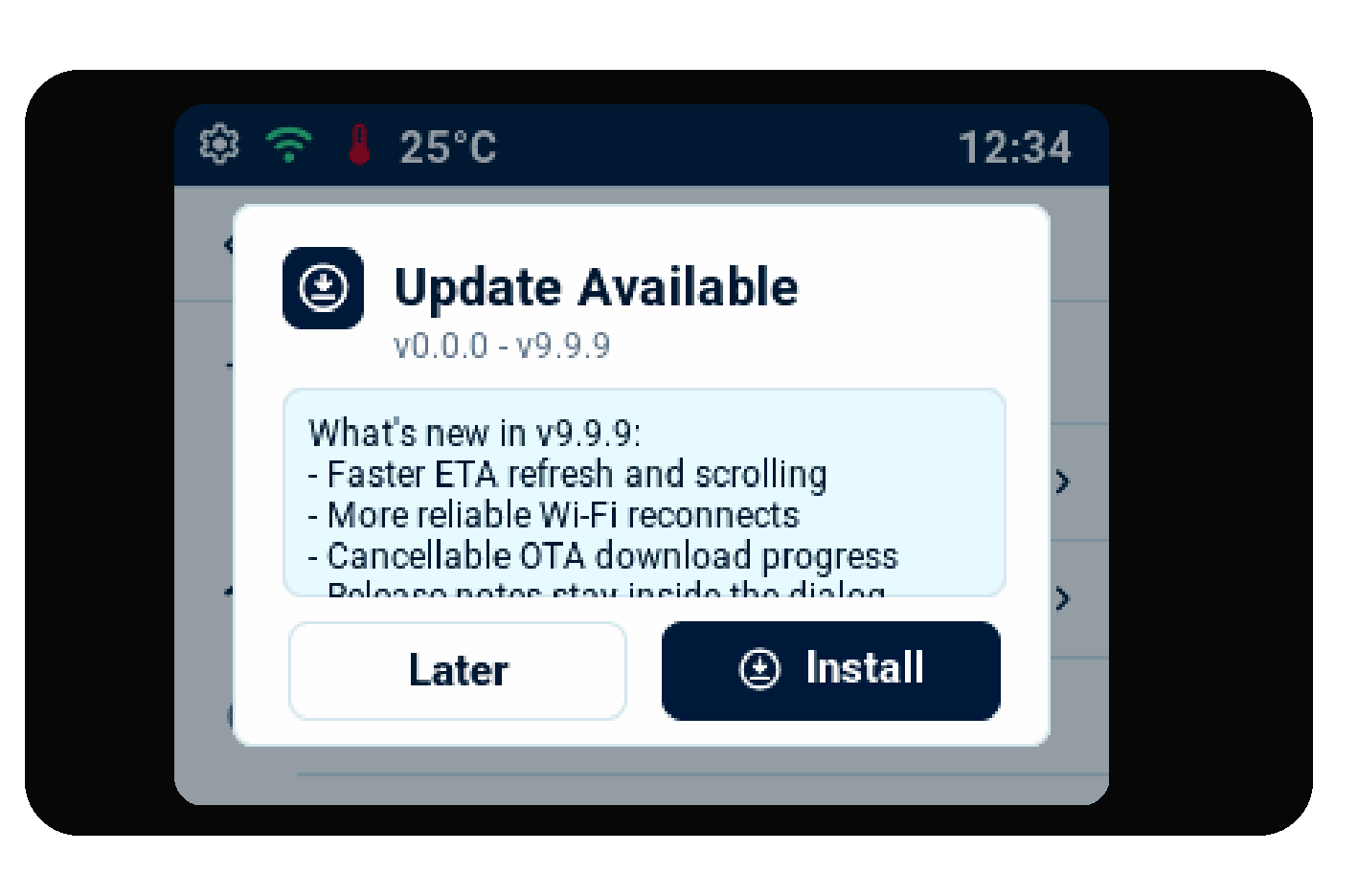
If the update does not finish, you may see Update failed. Select Done, check Wi-Fi, and try again.
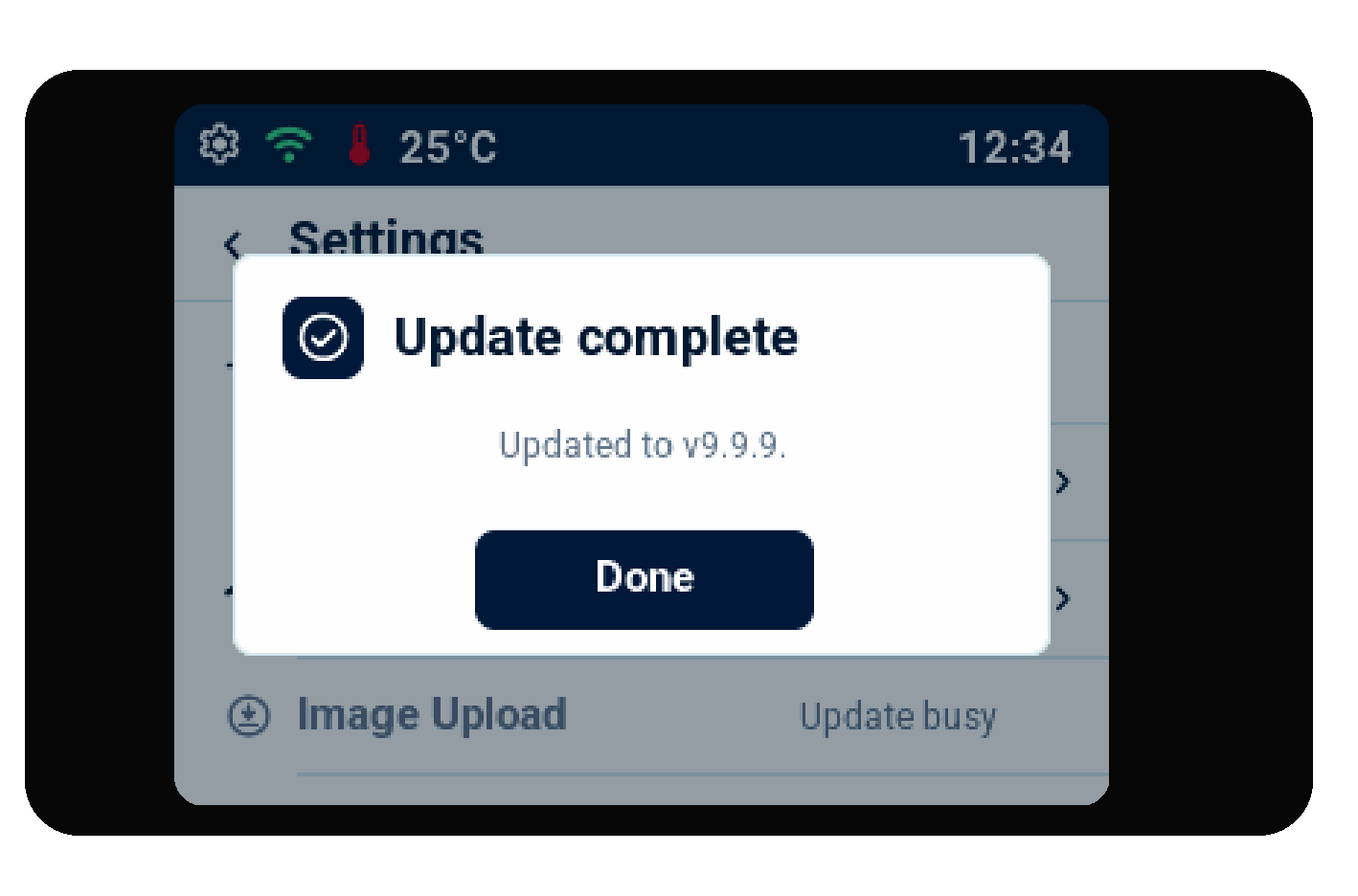
You can also open About Device to see the current version, or use Reset Device if you need to erase saved settings.