
Wi-Fi
Join a 2.4 GHz network and understand the Wi-Fi icon.
Open Wi-Fi from the Wi-Fi icon in the top bar or from Settings → WiFi. The display starts scanning automatically; select Scan if you need to search again.
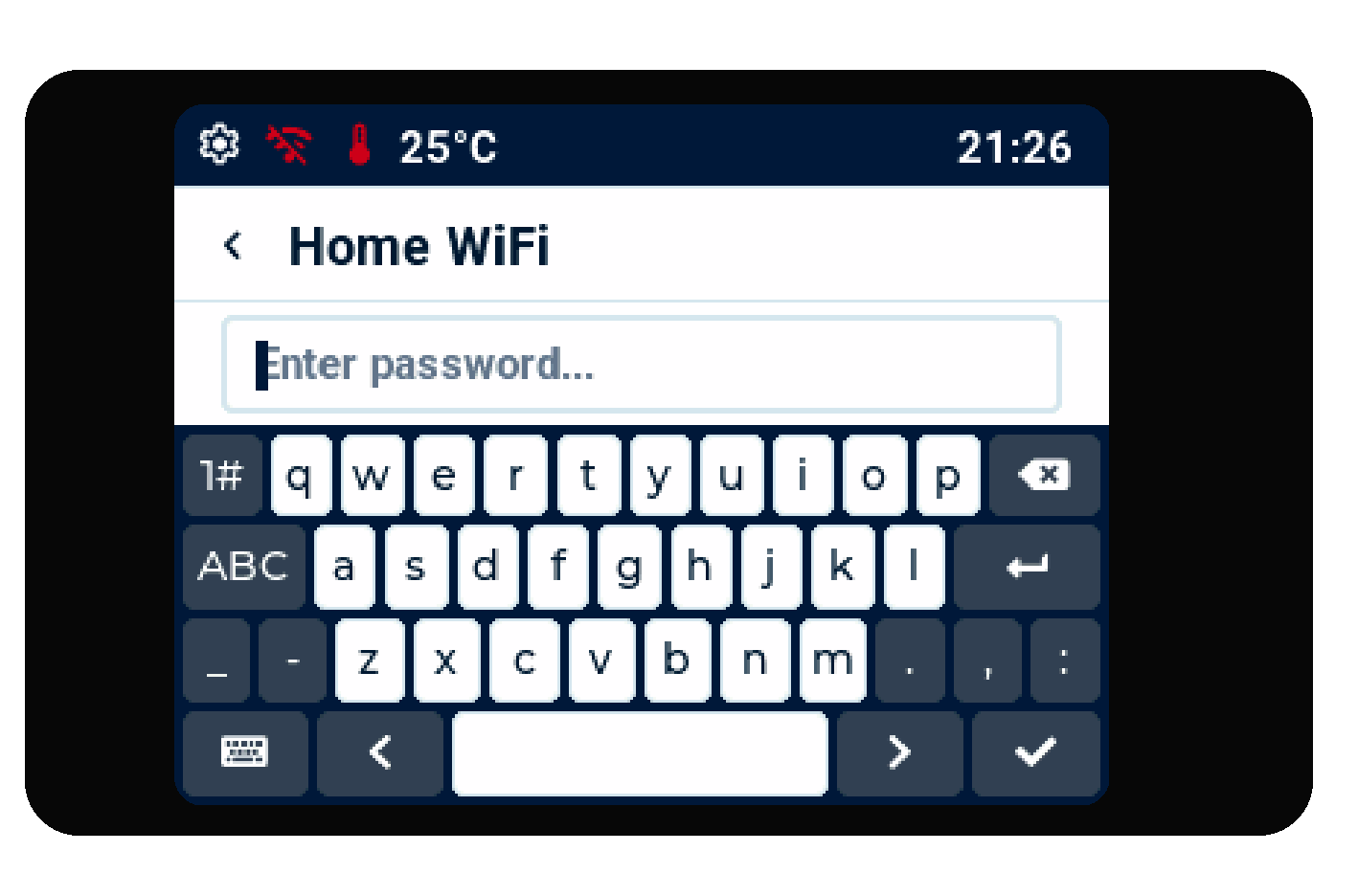
After choosing a protected network, type its password on the display keyboard and select the tick.
Connect to Wi-Fi
- Choose your 2.4 GHz network in the list.
- Enter the password exactly as you normally would on a phone or computer.
- Select the tick on the display keyboard.
- Wait for Connected. The display saves the network and reconnects after a restart.
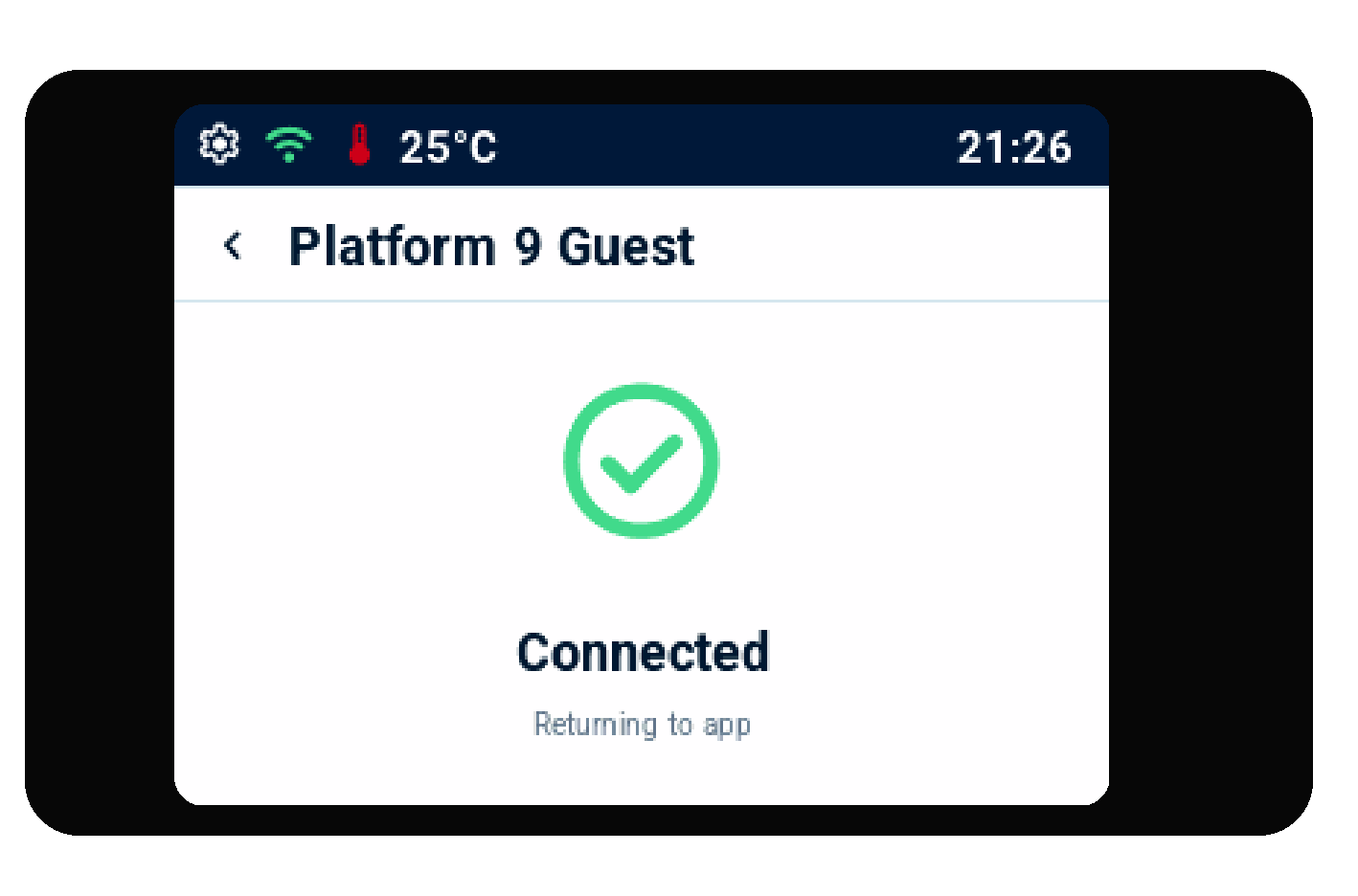
What the Wi-Fi icon means
| Icon colour | Meaning | What to do |
|---|---|---|
| Green | Connected | Live arrival information can refresh. |
| Yellow | Connecting or reconnecting | Wait a moment; the display is trying the saved network. |
| Red | Not connected or connection needs attention | Open Wi-Fi, check the password, and try again. |
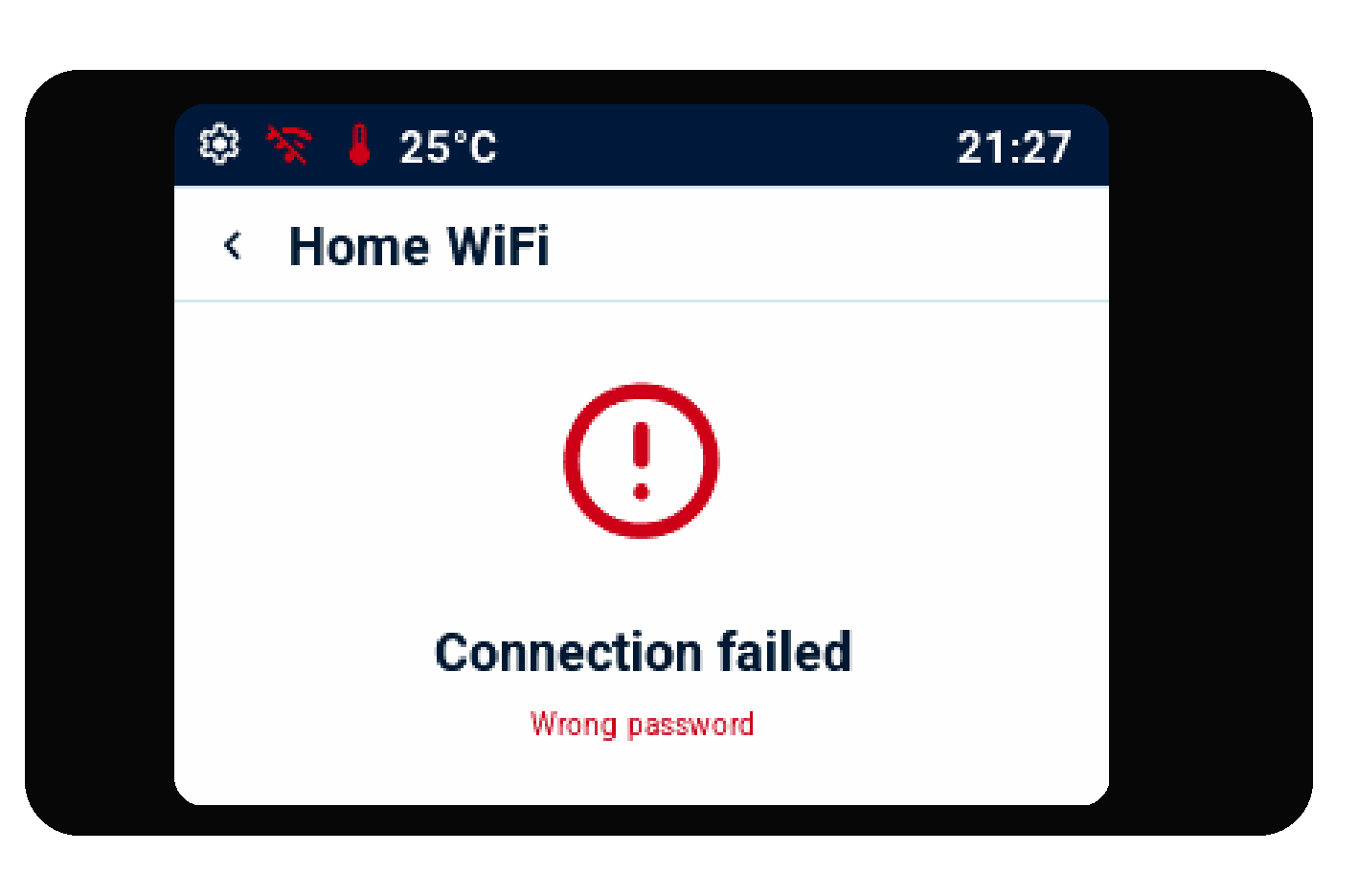
If the password is incorrect, the display shows Incorrect password. Correct it on the same screen and try again.
Network requirements
Platform 9 supports 2.4 GHz Wi-Fi only. Use a normal network with internet access. Hotel, school, office, or public networks that ask you to sign in on a phone browser may not work.
Try a home network or phone hotspot if connection fails. For more help, see Help.